Thursday, May 25, 2017

Samsung Galaxy S4 Google Play Store Opens On Its Own Issue Other App Related Problem

Welcome to another installment of our troubleshooting series where we aim to help our readers fix the #Samsung #Galaxy #S4 problems that they are experiencing. In this latest episode we will tackle the Galaxy S4 Google Play Store opens on its own issue & other app related problems. If you have requested for our assistance lately regarding app related issues on your device then we might have addressed the issue below.Samsung Galaxy S4
If you would like to browse the previous parts in this series then check out this link.  
You may also reach us at our Facebook and Google+ social media accounts.
S4 Google Play Store Opens On Its Own
Problem: Any time I open any app most of the time right after I take it of screen lock…the first app I try to open it pops up the Google play store instead of the app I was trying get to….It’s been happening a while so could really pin it to certain apps I may have put on here at time it’s just getting aggravating.I’m not sure what operating system this this phone uses either…It’s a straight talk phone that uses att towers. I just need to know if there is a way to look up what’s causing it to make it stop..open to any suggestions. Thank you
Solution: Have you noticed if every time Google Play Store opens it directs you to a particular app to download? If it does then your phone could be infected with some form of adware. This usually occurs if you install apps from untrusted sources or click on the pop-ups that appear on your browser.
To resolve this issue try to check first if it is caused by some app installed in your phone. To do this you need to start your device in Safe Mode. In this mode only the pre-installed apps are allowed to run while apps you downloaded are disabled. Try to open an app. If the Google Play Store does not open then the problem could be caused by an app you downloaded. Find out what app this is and uninstall it.
If the issue still occurs even in Safe Mode then I suggest you backup your phone data then do a factory reset. This will permanently take out any adware that may be present in your phone.
To prevent this issue from happening in the future try to follow the tips listed below.
  • Only install apps from the Google Play Store. Although this isn’t a 100% sure way of preventing adware from entering your phone it is still one of the most secure ways of getting apps.
  • Consider getting a security app on your phone.
  • Avoid clicking on pop-ups that may appear in your browser or apps.
S4 Apps Freezes
Problem: apps freezes some minutes after i launch them. when i press the home key to minimise and maximise again. It stops freezing and continues working. i wiped the cache partition and it still persists. pls help me. i submitted my email address above.
Solution: One of the main reasons why an app freezes is because of some form of corrupt data in the app itself. Try c learing the cache and data of the affected app from the app manager then check if the issue still occurs.
Sometimes a faulty microSD card can also cause this problem especially if the app’s data is stored in this card. If your phone has a microSD card installed the try removing it.
If the above troubleshooting steps fail then I suggest you backup your phone data then do a factory reset.
S4 Apps Crashes If Wi-Fi Is Turned On
Problem: So i turn on the wifi, then my apps start crashing like 10 or more apps will crash. The apps and the Android system crash and they lag the phone, so i can’t do anything. The only way is to wait and then restart the phone. If i don’t connect to wifi there are no problems. But when i connect all the crashes happen in like 5-7 minutes. please help.
Solution: It appears that some form of corrupt data in your phone is causing this issue. Try wiping the cache partition of your phone from the recovery mode then check if the issue still occurs.
If the problem persists then I suggest you perform a factory reset. Don’t forget to backup your phone data before performing this procedure.
S4 Facebook App Videos Freezes
Problem: Faceb ook app videos are the problem on my GS4. I’ll click on them, it’ll play for 1-2 seconds and then it stops. I can’t resume, pause, rewind/FF. I have cleared all cache files, uninstalled, restarted, and re-installed the app and still the same thing. however, when facebook is opened via a web browser, there are no issues. I have the latest facebook app installed.
Solution: It appears that the app itself has a problem. Try to check if your phone is running on the latest software version ( must be on Lollipop). Update your phone software if necessary. If your phone is alr eady running the latest version of Android then the issue could be caused by the Facebook app. As a temporary solution you could just access Facebook using Chrome. For a permanent solution I suggest you wait for the next update of the app to be released which should have a fix to this problem.
S4 Snapchat Has Stopped Working Error
Problem: Snapchat freezes my entire phone. A black box that says “snapchat has stopped working” . Even when I choose to close app my phone still freezes screen goes black. I have to take my battery out.
Solution: If this issue only occurs on the Snapchat app then the app could have a problem. Try clearing the cache and data of this app. This deletes the temporary data stored by the app which could be causing this problem. If you are still experiencing the same issue then uninstall the app then download a fres h version from the Google Play Store.
S4 Downloading Accuweather From Other Source
Problem: accuweather was giving erroneous information. uninstalled it and am hesitant to use Google play to download new version. Don’t understand why I need to use Google play. Is there another  way?
Solution: I strongly suggest that you download apps only from the Google Play Store to minimize the possibility of malware infecting your phone. If you must download apps from other sources then you could try the Amazon App Store.
Since the issu e you are having with Accuweather is the information it provides then this could be caused by other factors and not by the app itself. Make sure that the app has the correct settings for your location. This app needs a good Internet connection to work so make sure your phone is online as well.
Engage with us
Feel free to send us your questions, suggestions and problems you’ve encountered while using your Android phone. We support every Android device that is available in the market today. And don’t worry, we won’t charge you a single penny for your questions. Contact us using this FB Page. We read every message we receive can’t guarantee a quick response. If we were able to help you, please help us spread the word by sharing our posts with your friends.  

Having problems with your phone that won’t turn on?
We can help you troubleshoot. We already published troubleshooting guides for the following devices:

  • Samsung Galaxy S2
  • Samsung Galaxy S3
  • Samsung Galaxy S4
  • Samsung Galaxy S5, Android Lollipop edition
  • Samsung Galaxy S6
  • Samsung Galaxy S6 Edge
  • Samsung Galaxy S6 Edg e+
  • Samsung Galaxy S7
  • Samsung Galaxy S7 Edge
  • Samsung Galaxy Note 2
  • Samsung Galaxy Note 3
  • Samsung Galaxy Note 4 Android Lollipop edition
  • Samsung Galaxy Note 5 

How To Change Timestamp Format In Blogger Post With Pictures

How To Configure Blogger Timestamp posts

How To Configure Blogger Timestamp

         An easy way to change the time format on a blogger post to make it more interesting to s ee, when we change the time stamp on a blogger post then not all format date and time on blogger changing all, in order not to change all we have to set your date and time formats only on blogger post just to have a great view, as I have observed in post blogger who has a date format, months and years, it was not very good
because the readers know that this post is long if the format year in show on the post. So to eliminate the format of bloggers post we have to set your appearing onbloggers post so our posts although already had years still look young so that people do not know when this post was published because they can not see the format of year, could only see the date format and months, how to alter the format of the date and month on blogger ?. to change the date format on the blogger would we have to change the settin gs timestampaccording to our wishes.
how to Change time stamp to date stamp, on all posts
Change time stamp to date stamp, on all posts


Heres how to change settings on a blogger post time stamp format:

1                        1.     Login in blogger
2                        2.   Setting >> language and formatting >> timestamp format  and choose format do you want

3                        3.      Click save setting

how to Change Timestamp format in Blogger

Change Timestamp format in Blogger


Wednesday, May 24, 2017

How to make Skype video calls with the Samsung Galaxy S2

One of the few complaints with the Samsung Galaxy S2 smartphone on release date was that the Skype app didnt allow video calls, this has however been sorted out thanks to to a new update for the app. Before you attempt to make a free video call through Skype with the phone make sure to update the application to the newest version (at the time of writing it is version 2.1.0.46.)
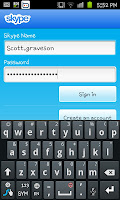
First you need to login into the app, you may need to create a Skype account if youve not already got one this is easily done via a computer (though Im not sure on setting one up via the phone its self).
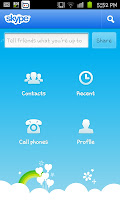
After logging into Skype you will see the menu screen that the app uses. You can select "Contacts", "Recent", "Call phones" and "Profile" as well as a search function (top right) and a text entry part to enter your status. If you wish to play about then fantastic! Though the option you need to select to make video
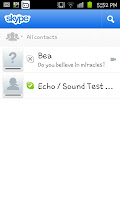
calls is the "Contacts" option which will open your contact list.
Sadly as you can see in the screenshot to the left Ive not got many contacts on my Skype account (having only created it for the purposes of this guide) though you need to select the contact that you are wishing to call.
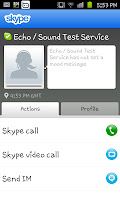
 Whilst in the contact screen (see right) you will notice 3 options
you can make a "Skype call" a "Skype video call" or "Send IM" (a plain text type message such as you would use on MSN or Facebook chat). The option you need to select here is the "Skype video call" option (rather predictably) and, as long as the other contact accepts the call youll manage to make the call.

Remember however that the other contact will need to be logged into an account and on a device capable of receiving and sending video calls (A PC or a phone with similar capabilities). When using a Samsung Galaxy S2 youll be using the phones front facing 2MP camera and also able to see your contact on the screen.

Remember when using this that you will need an internet connection, preferably a high speed 3G (or even 4G) connection or a good and stable Wi-Fi connection. If you are using a mobile internet connection make sure you keep an eye on your usage as you may end up incurring a data charge, however the function of making video calls through Skype its self is free. You will usually notice that using Wi-Fi will allow a smoother call than using mobile internet though even using 3G should allow a smooth and solid call.

Samsung Galaxy S6 edge review Software overview 1


User interface

Samsung Galaxy S6 edge+ boots Android 5.1.1 Lollipop, dressed in the Korean manufacturers TouchWiz UX. The company has been polishing and perfecting its user interface for quite some time now, and the latest iter ation is one of the most capable custom takes on Android available around.
The lockscreen shows two notifications - additional ones get collapsed and you only see their icons. You can tap the down arrow to see the full list. If an app gets too pushy, you can hide its notifications from the lockscreen. There is also weather information for your location and pedometer stats.
Samsung Galaxy S6 ed   ge+ Samsung Galaxy S6 edge+ Samsung Galaxy S6 edge+ Samsung Galaxy S6 edge+
Dialer and camera shortcuts are available, but we prefer the other camera shortcut - double-tap the Home key from anywhere in the UI and the camera launches within a second.
Private mode returns and it utilizes the excellent fingerprint reader. After youve trained it, you only need to place your finger for half a second for it to recognize your finger. Its also quite lax when it comes to finger orientation too, no more struggling to swipe just the right way as it was on the Note 4.
Samsung Galaxy S6 edge+ Samsung Galaxy S6 edge+ 
Private mode creates a secure folder that disappears when the mode is disabled. You can have Private mode automatically disabled every time you lock the phone.
The lockscreen can also use the fingerprint reader as a locking mechanism. Its quicker and more convenient than swiping and more secure than simple patterns or PIN.
A nice feature allows you to hide the content of the lockscreen notifications or disable them altogether, so people cant snoop on your received messages and emails.
Smart Lock disables the secure locking options when a trusted device is connected (Bluetooth smartwatch or car stereo or an NFC sticker) or when the phone is in a trusted location. Unfortunately, thats determined by geo-positioning only, you cant add a trusted Wi-Fi network.
Just like its smaller siblings, Samsung Galaxy S6 edge+ supports themes. We got three preinstalled out of the box, but you can download more in the Galaxy Apps store, including an Avengers theme (Samsung is the chief supplier of lots of Avengers tech movie props). Themes can change the wallpaper and icons, core apps such as dialer, contacts, and messages, as well as the notification area.
Samsung Galaxy S6 edge+ Samsung Galaxy S6 edge+ Samsung Galaxy S6 edge+ Samsung Galaxy S6 edge+ 
The homescr een itself is quite familiar. You get the optional FlipBoard Briefing pane on the left, which pulls info from a selection of news sources on topics you find interesting. Theres an option to change the screen grid between 4x4, 4x5 and 5x5, the smallest one is the default.
Samsung Galaxy S6 edge+ Samsung Galaxy S6 edge+ 
The wallpaper now has a subtle motion effect that we didnt notice at first.You can disable it in the wallpaper settings if you wish.
The notification area has one side-scrollable row of quick toggles. Some have text underneath, showing you the name of the Wi-Fi network you are connected to for example.
Samsung Galaxy S6 edge+ Samsung Galaxy S6 edge+ Samsung Galaxy S6 edge+ Samsung Galaxy S6 edge+ 
The brightness slider is below that and then the S Finder and Quick connect buttons. One cool feature is that while adjusting the slider, the notification area fades away so you can see the app you were using before.
You can rearrange the quick toggles by tapping the Edit button. The S Finder and the Quick Connect shortcuts can also be removed if desired.
The Galaxy S6 edge+ comes with a page and a half of icons in its app drawer, but several folders conceal the actual number of pre-installed apps. Some of the latter are organized in folders.
Samsung Galaxy S6 edge+ Samsung Galaxy S6 edge+ 

Tuesday, May 23, 2017

How to turn the internet OFF on a Samsung Galaxy S2

 Whilst lots of people will be wanting to use their fantastic new Samsung Galaxy S2 to play about on the internet some people will either not have a contract that allows for mobile internet or will be wanting to save battery. One of the ways of dealing with both of these issues is to turn off the mobile internet. If you are not connected to a Wi-Fi connection your phone will always be searching for the internet even if it wont be using it. Of course if you have things synced up then the phone will syncing all the time which really drains the battery and can even add to your bill.

To "turn the internet off" you need to enter the settings menu (press the menu button
and then settings) then open up the Wireless and network sub settings men before scrolling down to the option called "Mobile networks". What you then need to do is untick the box that says "Use packet data". This will completely stop you from using the internet AT ALL on your phone and as a result you wont be able to search the net, sit on facebook or receive MMS messages.

Of course you can, at any point, go back and tick the box to turn it back on if you decide you do want to sit browsing the internet via mobile internet services (you can however still use Wi-Fi even with packet data turned off).

Hope this helps to both save you money and save your battery.

A guide on setting up speed dial on a Samsung Galaxy S2

 Although finding and calling contacts on a Samsung Galaxy S2 cell phone is incredibly simple via the contacts screen some people will prefer to set up a speed dialing system where you merely need to hold a number to call a contact. Setting up a speed dial contact is incredibly simply and something anyone can do.

Th start with you will need to open up the phone application (by default itll be a big green button on your home screen). When youve done that you will need to press the phones "menu" button to open up a small menu at the bottom of the screen. When youve done this your screen will look something like the image to the right.

When youve opened that menu you will need to click on the top left option, the one called "Speed dial setting". After pressing that you will seen a screen that looks like the screen shot to the left with all the numbers and a + with them all. Select one of the numbers (between 2-9) and youll then have to select the contact you want to associate with that number. For this example weve added "Bee" for the number #2 speed dial as you can see to the right.
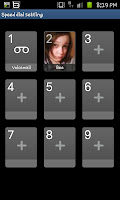
If you go back to to your phone application and hold the associated number youll call the contact with out needing to fiddle with the process of scrolling down your contacts. One thing you will need to remember is which contacts youve associated with which numbers. Trust me I wouldnt want to call Bee and go "Hi, how you dad?" or somet hing similar.

Monday, May 22, 2017

Samsung Galaxy S4 Unfortunately Internet Has Stopped Issue Other Related Problems

Imagine trying to go online on your #Samsung Galaxy #S4 device but then you are unable to do so. This is going to be quite frustrating especially if you need certain information from a website or need to check your email. Several of our readers are experiencing this type of issue which is why we will be covering this topic today. In this latest installment of our troubleshooting series we aim to resolve the Galaxy S4 unfortunately Internet has stopped issue & other related problems.
Samsung Galaxy S4
If you would like to browse the previous parts in this series then check out this link.  
You may also reach us at our Facebook and Google+ social media accounts.
S4 Unfortunately Internet Has Stopped Issue< /div>
Problem: Frequently when i open my emails and start reading one, i will get the “tab has crashed” notice and “internet has stopped”
Related Problem: Whenever I try t o download anything from the internet it suddenly goes black and then see that error code saying unfortunately internet has stopped.  Its really getting on my nerves and am fed up. What can I do to make to stop? Pls  really need your help soonest
Related Problem: When downloading or saving images, my Internet crashes giving the “Internet has stopped” this happens on chrome as well. I suspect that it is because I recently force quit download manager but when I checked bit seemed normal.
Solution: All of the three problems listed above have one thing in common and that is they are getting the unfortunately, Internet has stopped error message. While this error message may appear to be too broad since it refers to the Internet connectivity of the phone it in fact pertains to the phone browser. Some form of corrupt data in this app usually causes this kind of error message. To fix this just go to the application manager then search for the Internet app. Proceed with clearing the cache and data of the app.
S4 Slows Down Wi-Fi Network Speed
Problem: When I connect my phone to my modem through wifi, my Network Connection Status Inspect fails. I still have internet on the phone and computers but it runs at dialup speed. When i turn off the wifi on the mobile, the Network Connection Status Inspect is ok and internet speed goes back to normal. Modem is a TP-Link Archer D9. My wife connects her samsung S4 the wifi and she has no problem. Please Help
Solution: One reason that can slow down your Wi-Fi network if your S4 connects to it is if the phone has some apps that are frequently accessing the Internet. Another possible reason is if the phone is syncing its data in the background. To check if this is the case try to turn off the automatic sync feature of the phone. You should also start your device in Safe Mode to check if an app is causing this issue ( especially if the app is aggressively using the network). When the device is in this mode only the pre-installed apps are allowed to run while downloaded apps are prevented from running. Connect your phone to the network then check if the network speed slows down. If it doesn’t then the issue could be caused by an app installed in your phone. Find out what app this is and uninstall it.
If the network speed still slows down even when the phone is in Safe Mode then I suggest you backup your phone data then do a factory reset.
S4 Wi-Fi Keeps Disconnecting And Reconnecting
Problem: Hi guys I love your site.  Very helpful. I had my s4 active replaced recently because of water damage. My old phone was running the same android ver 5.0.1 but i never had this problem.But my new s4 active has been acting up. I have been using xfinity hotspot at home, but my phones wifi keeps disconnecting and reconnecting almost every minute or so. This also happens with any w ifi I connect to. I’ve tried turning off the wifi power saver, also turned off the automatic switch between  mobile network and wifi. I have no idea what to do. Any insight would be appreciated.
Solution: Since you mentioned that the issue happens even if your phone connects to different Wi-Fi networks then this is most likely a phone related issue. The settings that you mentioned seem to be good. What you should check next is if some form of corrupt temporary data in your phone is causing the problem by wiping the cache partition of your device in recovery mode. Aft er this check if the issue still occurs.
Another factor that can cause this problem is an app you installed in your phone. Try starting your phone in Safe Mode then check if the Wi-Fi still keeps on disconnecting and reconnecting. If the issue does not occur then it could be caused by an app you installed. Find out what app this is and uninstall it.
If the problem still occurs even in Safe Mode then you can do one last troubleshooting step and that is to perform a factory reset. Remember to backup your phone data before doing this.
S4 Opens Browser, Displays Ads
Problem: hi, thank you for your time, im having problems with my phon e whenever i switch it on it opens the browser and this also happens whenever i try to change my whatsapp profile picture  , the web address that it will be directing to is trafficserver.com. i have tried to look for the app linked to it but cannot find it. it also have adverts of apps coming on the screen even when you offline
Solution: Your phone could be infected by some form of Adware. This usually enter the device from apps you downloaded from unofficial sources ( although there is a small possibility that  it can also come from the Google Play Store) or by c licking on some pop-up links in the phone browser.
What you need to do is to find out what app is causing this issue and uninstall it from your device. It’s also best if you install a security app and have it scan your phone.
For best result I suggest you backup your phone data then do a factory reset.
S4 No Mobile Data Connection
Problem: Today I can’t connect to the internet with my phone. I have rebooted it about 5 times but that hasn’t fixed it. Whenever I click the “mobile data” button, nothing happens. No symbol on the top and no data connection. Any suggestions?
Solution: What you need to do first is to check if you are in an area that has a good mobile data reception. If you have access to another device with on the same network as your phone try to check if it has any data connection. You should also contact your network and inquire if there are any network related issues or account related issue that could cause this problem.
Once you have eliminated the network and the account as a possible cause to this problem it’s time to troubleshoot the phone itself. Try wiping the cache partition of your phone first from the recovery mode and see if this fixes the problem. You should also start your phone in Safe Mode then check if a mobile data is available. If it is then the issue could be caused by a third party app installed in your phone. Find out what app this is and uninstall it.
If the above troubleshooting steps fail then I suggest you backup your phone data then do a factory reset.
S4 Can’t Get 4G Connection
Problem: My phone isn’t able to get 4g network. I have had to get a new Sim and a new phone and it still doesn’t work it sometimes won’t let me make phone calls or text. I am through straight talk and live in Rockland Maine please help
Solution: From the way you describe the problem it appears that this issue is caused by some signal strength issues. Have you tried to check if the issue occurs in other locations? If it doesn’t then your area could have weak coverage.
If the problem occurs in different areas then I suggest you backup your phone data then do a factory reset. Once the reset is done do not install anything in your device yet. Try to check if the issue still persists.
Engage with us
Feel free to send us your questions, suggestions and problems you’ve encountered while using your Android phone. We support every Android device that is available in the market today. And don’t worry, we won’t charge you a single penny for your questions. Contact us using this Page. We read every message we receive can’t guarantee a quick response. If we were able to help you, please help us spread the word by sharing our posts with your friends.
Having problems with your phone that won’t turn on?
We can help you troubleshoot. We already published troubleshooting guides for the following devices:

  • Samsung Galaxy S2
  • Samsung Galaxy S3
  • Samsung Galaxy S4
  • Samsung Galaxy S5, Android Lollipop edition
  • Samsung Galaxy S6
  • Samsung Galaxy S6 Edge
  • Samsung Galaxy S6 Edge+
  • Samsung Galaxy S7
  • Samsung Galaxy S7 Edge
  • Samsung Galaxy Note 2
  • Samsung Galaxy Note 3
  • Samsung Galaxy Note 4 Android Lollipop edition
  • Samsung Galaxy Note 5